Showing posts with label Utilities. Show all posts

Sunday, 15 October 2017

Application Settings is now Excel Settings

I decided to add more some more functionality to my Application Settings addin. In fact, I also changed the name to Excel Settings. (It's actually a different file, so please be sure to click "Check settings when opening/saving files" on the menu if you want these to fire).

What's new? As you can see, I added 2 new sections for Workbook Scope and Worksheet Scope settings. The picture pretty well speaks for itself.


And, if your file is saved (has a path), you can see File Size, Last Saved (Date and Time) and Last Edit (Author) details.

The download link is here.

Saturday, 2 September 2017

Application Settings Add-in Version 2

I made a new version of my Application Settings addin as per Sébastien's comments in my last post (mirrored on the Daily Dose of Excel).


As you can see, there are new settings for the following.

Application.Iteration

Application.MaxIterations

Application.MaxChange

In the case of the last 2 settings, you'll notice that there are Set, Reset and Save buttons. This is how they work,

Set: Set to the number that is entered in the text box.

Reset: Reset to the real default or “alias” default.

Save: Save an “alias” default instead of Excel’s real default. For example, if you prefer 120 instead of 100 for Max Iterations, you can set the “alias” default so that the form does not appear when opening or saving the active workbook if Application.MaxIterations is set to 120. Also, clicking the Reset button thereafter will reset Application.MaxIterations to 120. And using the Set button to set Application.MaxIterations to any other value than 120 will show the value in red font to indicate it is not the “alias” default.

Hope this is useful. Download the new version here.


Tuesday, 22 August 2017

Application Settings Add-in

Back in 2005, I noticed something that worried me.

You may know already that switching Application.Calculation to xlCalculationManual can make various code run faster. It can be a big time saver.

The problem, as I see it, is not switching it back to xlCalculationAutomatic. Given that some people for whatever reasons might use Manual Calculation all the time, most people don't, especially the vast majority of average users who probably haven't heard of this setting. With Calculation still set to Manual, they might be looking at values that haven't be updated. Even experienced programmers might be temporarily confused until they figure out what's going on. Imagine someone in a sales department quoting incorrect pricing to a customer or doing a faulty presentation at an important meeting. Not good.

And now for what really worries me - saving files with this setting. Let's try something. Close all Excel files, except one to use for testing. Now switch to Manual Calculation. If you don't know how to do it in code, you can click Calculation Options on the Formulas tab, then select Manual. Now save in that setting, close Excel, and reopen the file. If that file is the first one to be opened, Excel Calculation will be set to Manual by default, and all other files opened thereafter will be affected too. Save any of them with this setting, and the same thing will happen if they happen to be the first file opened...

So, how do you know Calculation is set to Manual without specifically checking?

You can't.

Now, imagine sending one of these files to colleagues or customers, then realizing something is amiss days later. Again, not good. In fact, downright scary.

So, also in 2005(?), I made an addin called Calculation Checker. It checks Calculation when you save and prompts you to do so as Automatic if set as otherwise (including Automatic Except for Data Tables).

I've found it useful, but since then I've thought there's room for improvement, so I made something new.


As you can see there's 3 menu items. The bottom 2, when toggle to "On", check files when opened/saved for the following settings.

Application.DisplayFormulaBar

Application.DisplayStatusBar

Application.Calculation

Application.ReferenceStyle

If any of those settings are not at their default, the Application Settings form will be displayed. Non-default settings are displayed in red. (Yes, the first 3 should be obvious, but easy enough to miss if you're busy, tired or both!)


Click the form's controls to reset them individually, or just click the Reset Everything button, then the Save File and Exit button if you choose to. Alternatively, click the X button not to save the file. Note that any other file that are open will also be saved with these settings (unless you change them later), because they are Application settings, not Workbook settings.

And because the form can be opened directly from the Ribbon, you can easily change any of the settings at any time for whatever reason. Click the Show Settings button and you can see other settings that can also be reset when clicking the Reset Everything button, if the Include other settings checkbox is ticked.


Note
Keep in mind that these additional settings aren't checked automatically. The form only resets them if you click the Reset Everything button as mentioned above. Also, if Application.EnableEvents is set to False by VBA code, my addin won't check files when opening or saving as these are the events that trigger it. In fact, you should be setting this False if any of your code does open or save workbooks to prevent my code from running, then set it back to True before the code ends.

Hopefully this tool will be of use. You can download it here.


Wednesday, 26 April 2017

AET VBE Tools v1.7.3

Yet another tool has been added!

You can now run a report that shows project statistics. It's a good way to get a general feel of how much work you have done, and where it is located.

Details include:
  • Module Names
  • Procedure Names
  • Count of Children (Project and Modules)
  • Procedure Scope
  • Count of Lines (Project, Modules and Procedures)
  • Count of Comments (Project, Modules and Procedures)
  • Count of Declaration Lines (Project and Modules)
  • Count of Declaration Comments (Project and Modules)


    Download the new version here.

    P.S. If you have purchased an earlier version, contact me by email and I'll send a new set of tools - free of charge!

  • Thursday, 6 April 2017

    AET VBE Tools v1.7.2

    Already? Didn't you just release v1.7.1?

    Yes, and I'm pleased to announce 2 new additions to the tools!

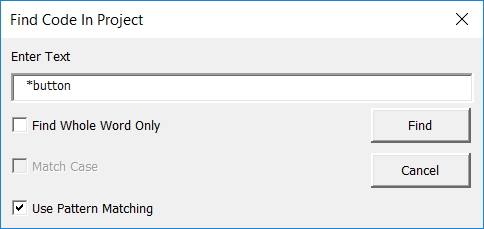
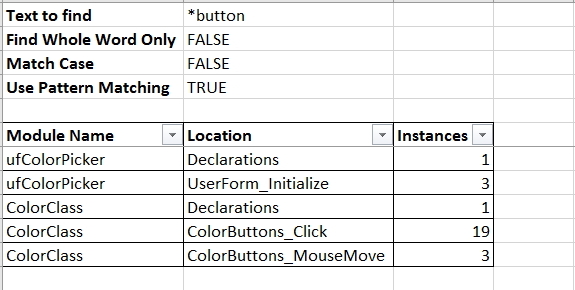
    Find Code In Project
    This tool creates a report that works in a similar way to the built-in Find dialog in the Visual Basic Editor.


    Details include,

  • Module Name
  • Procedure Name
  • Instances (count of code found)


    Select Current Procedure
    Do you hate scrolling?

    Selecting all code in a module is easy, just use the Ctrl + A keys on your keyboard. A procedure - not so easy, especially if it's a loooong procedure.

    Trust me, this tool helps. You and your hand(s?) can thank me later.

    Download the new version here.

    P.S. Tick the G+1 icon at the bottom of my post to tell me if you like what you see!

  • Monday, 27 March 2017

    AET VBE Tools 1.7.1

    It has been a busy couple of weeks, but I added some new features to my VBE tools.

    Line Continuation
    Here's a pic of what's available.


    My version of line continuation adds spaces and underscores after And and Or keywords.

    So something like
    If Left$(LTrim$(.Lines(lCodeLine, 1)), 4) = "Sub " Or Left$(LTrim$(.Lines(lCodeLine, 1)), 12) = "Private Sub " Or Left$(LTrim$(.Lines(lCodeLine, 1)), 11) = "Public Sub " Or Left$(LTrim$(.Lines(lCodeLine, 1)), 9) = "Function " Or Left$(LTrim$(.Lines(lCodeLine, 1)), 17) = "Private Function " Or Left$(LTrim$(.Lines(lCodeLine, 1)), 16) = "Public Function " Or Left$(LTrim$(.Lines(lCodeLine, 1)), 12) = "Property " Or Left$(LTrim$(.Lines(lCodeLine, 1)), 12) = "Private Property " Or Left$(LTrim$(.Lines(lCodeLine, 1)), 12) = "Public Property " Then

    becomes
    If Left$(LTrim$(.Lines(lCodeLine, 1)), 4) = "Sub " Or _
    Left$(LTrim$(.Lines(lCodeLine, 1)), 12) = "Private Sub " Or _
    Left$(LTrim$(.Lines(lCodeLine, 1)), 11) = "Public Sub " Or _
    Left$(LTrim$(.Lines(lCodeLine, 1)), 9) = "Function " Or _
    Left$(LTrim$(.Lines(lCodeLine, 1)), 17) = "Private Function " Or _
    Left$(LTrim$(.Lines(lCodeLine, 1)), 16) = "Public Function " Or _
    Left$(LTrim$(.Lines(lCodeLine, 1)), 12) = "Property " Or _
    Left$(LTrim$(.Lines(lCodeLine, 1)), 12) = "Private Property " Or _
    Left$(LTrim$(.Lines(lCodeLine, 1)), 12) = "Public Property " Then


    Much easier to read. But there are 2 things to watch out for.

    1. If And or Or is between quotation marks, an error will occur. If this happens, click Undo last operation.

    The best way to check for errors is to use Compile VBA Project at the top of the Debug menu after adding line continuation.

    2. I haven't experienced problems myself, but I occasionally read about people whose code doesn't work properly if there is too much line continuation in a project. Something to keep this in mind anyway. Again, I recommend compilation of code and saving your work at regular intervals in case things go wrong.

    New Cleanup Project Options
    In addition to deleting excess blank lines (if you have several blank lines between code, only one will remain), you can now choose to delete all blank lines too. Not only that, you can delete comments and indenting.


    Personally, I like to have blank lines between regular code and indenting for readability, as well as comments to keep track of what is going on. But when the code is ready for distribution, the 3 new options can drastically reduce the size of your project which is definitely a good thing.

    Download the tools here.

    P.S. Tick the G+1 icon at the bottom of my post to tell me if you like what you see!

    Note: Thanks to everyone who participated in the Facebook sharing event. All good things come to an end, and the offer is now closed! (Don't forget to send your email address so I can send a copy of the tools. My email address is on the blog sidebar).

    Sunday, 12 March 2017

    AET VBE Tools v1.7

    Finally they're ready!

    What's new?

    1. Rename Userform Controls
    This tool allows you to batch rename all controls on a userform via a simple Find and Replace interface. In addition to changing the control names, it also changes code with the old control name to the new control name.

    So, if you want to change all controls that start with "CommandButton" to "btn" or "cb", etc, this is the way to do it all at the same time!


    2. Make Project Variables List
    The bigger the project, the more complex it becomes.

    This tool analyses your code and makes a list of variables and constants.


    Details include:
  • Module Name (Where the variable or constant is)
  • Scope (Public, Private, Type or Procedure)
  • Location (Declaration or procedure name)
  • Name (Variable or constant name)
  • Type (Variable or constant type, eg String, Long, etc)
  • Const (True or null, to discern between variables and constants)
  • Const Value (Value if constant)
  • Found in Project (Count within project)
  • Found in Report (Count within report)
  • Modules Count
  • Procedures Count
  • Unique Values
  • Duplicate Values

    More features are planned in the near future.

    3. Copy Code for Web
    If you need to show your code on the web, normal indenting won't show. The way to get around it is to convert indent spaces to " ".

    This tool does that and copies the code to the clipboard so you can paste it where required.

    4. Delete Orphan Code
    This feature was added at the request of Kellsens Willamos, who has supported me and the development of these tools from the beginning.

    What's "orphan code"?

    When developing, did you ever click userform controls by mistake? Maybe you get something like this.

    Private Sub lblSelectProject_Click()

    End Sub


    Chances are you don't want the code, and if there's nothing between the first and last line, it's a fair bet that you don't. The Delete Orphan Code tool looks for code like this and gets rid of it.

    I've added it as an option on Cleanup Project Code. To include it, tick the checkbox on the Settings form.


    AET VBE Tools are no longer free. But I'm keeping the price low so they are affordable. (And you will get future versions free of charge!)

    You can download them here.

    P.S. Tick the G+1 icon at the bottom of my post to tell me if you like what you see!

  • Monday, 6 March 2017

    AET VBE Tools v1.6.4 and Overall Progress

    Latest patch - 2 bugs have been fixed, and one change has been made to certain wording.

  • Fixed an indentation bug when the first procedure of a module was at the very top (No Option Explicit and no Declarations).

  • Also fixed a bug with Macro Comment Tools when more than one tool was used with the form still open.

    And I changed the wording of some messages to simplify translations for international versions!

    2 translations are being prepared - Portuguese and Japanese - and I want your help to translate into other languages!

    Please contact me the email address below.


    Other Progress
    It's been a super busy week getting the tools ready for translations, but there's more good news!

    I've started work on a version that works with Microsoft Word and plan to make a version for other Office products.

    Will keep you updated!

    For now, download AET VBE Tools v1.6.4 here.

    Ticking the G+1 icon at the bottom of my posts fuels my enthusiasm!

  • Tuesday, 28 February 2017

    AET VBE Tools v1.6.3

    This patch concerns another change to the Undo code, and is in case you unchecked "Trust access to the VBA project object model" after launching Excel. Perhaps unlikely, but I like to avoid potential bugs whenever possible.

    v1.6.3 is available here.

    Also, thanks to everybody who ticks the G+1 icon at the bottom of my posts. It gives me incentive to keep doing my best!

    Sunday, 26 February 2017

    AET VBE Tools v1.6.2

    Just a quick post to let you know the a new patch has been uploaded.

  • Indentation had a bug fixed when there were comments immediately after "Then" in If... Then code.

  • Cleanup Project Code had a minor tweak to alert you when no options were chosen.

  • I disabled Undo when a different tool is run.

    Undo should be used (if you wish to) immediately after you use a tool. So having it still enabled after using another tool may have caused confusion.

    Many thanks to those who have helped me improve these tools. Your support is appreciated!

    I'm happy to say the next version is already finished with 3 new tools, I'm just waiting for the online store to get things set up. Hoping for early March at this stage.

    Until then, v1.6.2 is available here.

    Update: I just released patch v1.6.3 that has another improvement to the Undo code.

    If you like my tools, please click the G+1 icon on this post and/or my blog's sidebar to let me know ;-)

  • Saturday, 18 February 2017

    AET VBE Tools v1.6.1

    Yes, it's still freeware. Think of it as a patch.

    I'm still committed to updating this version by fixing any bugs that I find, or tweaking this and that with improvements. It won't have as many features as upcoming versions, but I don't intend to abandon it either.

    So, what's new?

  • An indenting bug was fixed for Select Case constructs when working with Projects and Modules.

  • I also improved the indenting of Add Line Numbers code.

  • When adding the date and time to text files being exported, the code has been adjusted to show the correct time.

  • I made a change to the Copy Code and Compare Code userforms. Sometimes duplicate file names were showing.

  • I edited Highlight Code In Excel so that individual Case statements are also highlighted with Select Case constructs.


  • Note: It is a big help to see them highlighted this way. Unfortunately I had to hard code that part, so it will only work if your tab settings are set to 4. (In the VBE, Tools, Options, Editor, Tab Width). If I find a way to determine this programatically, I will adjust the code to suit.

  • As a small bonus, I also added the functionality to delete Debug.Assert and Stop to the Cleanup Project code.


  • Download it here.

    Saturday, 11 February 2017

    AET VBE Tools v1.6

    This will be the final freeware version.

    Let's see what we have so far. Access AET VBE Tools by right clicking within the active code pane.


    Here are the tools.

    Indent Code
    Indent code within the active VB project, module, procedure or selected text.


    Add Line Numbers
    Add line numbers to code within the active VB project, module, procedure.


    Delete Line Numbers
    Delete line numbers from code within the active VB project, module, procedure.


    Export Code
    Export code from the active VB project, module, procedure to text files.


    Compare Code
    Select modules from projects.


    Code from both modules will be exported to worksheets in a new workbook.

    Code that exists in one module, but not the other (and vice versa) will be highlighted.


    Copy Code
    You can copy code/modules between projects.


    Standard modules, class modules and userforms will be be replaced if they exist (have the same name), or added if they don't exist.

    ThisWorkbook code will be replaced.

    Sheet module's code will be replaced if the sheet exists, or worksheets will be added with the new code if they don't exist.

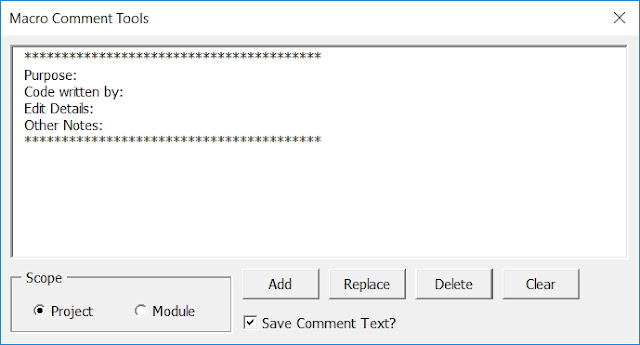
    Macro Comment Tools
    A handy way to add generic comments to all macros in the active project or module.


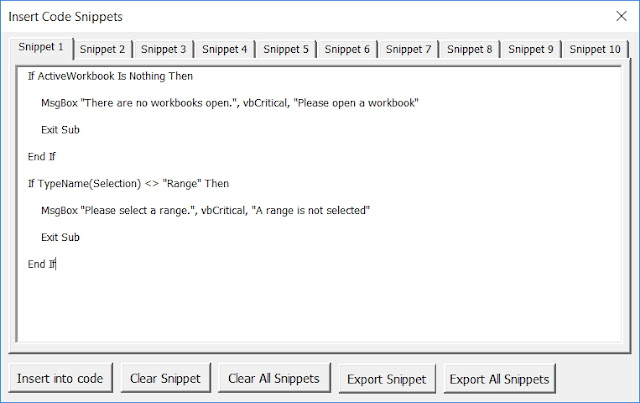
    Insert Code Snippets
    Tired of entering the same code all the time? This makes it easier.


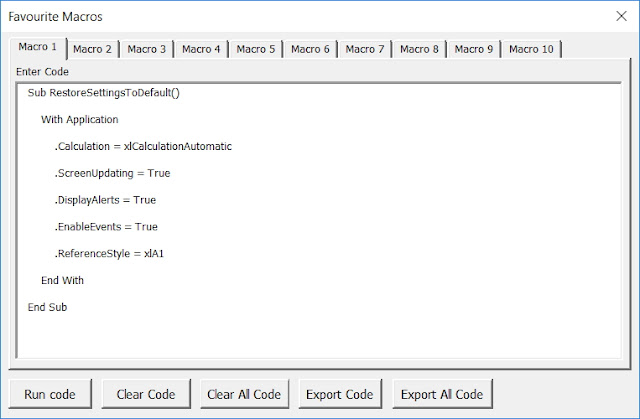
    Run Favourite Macros
    Yes, you can already run them from your Personal workbook.

    But now you can also export your favourite code to text files. Note: Not all code will run. This is a experimental tool, but I have found it quite useful when coding myself.


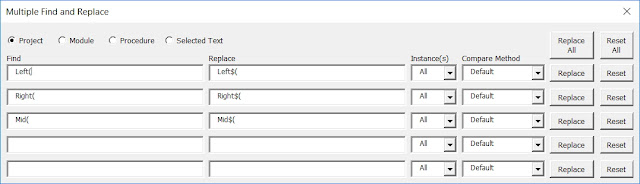
    Multiple Find And Replace
    You can find and replace code with several fields at once. Fields are saved between sessions.


    Cleanup Project
    Just 2 options at the moment. You can delete lines of code that have "Debug.Print", and also delete excess blank lines. (Only a single blank line will remain)

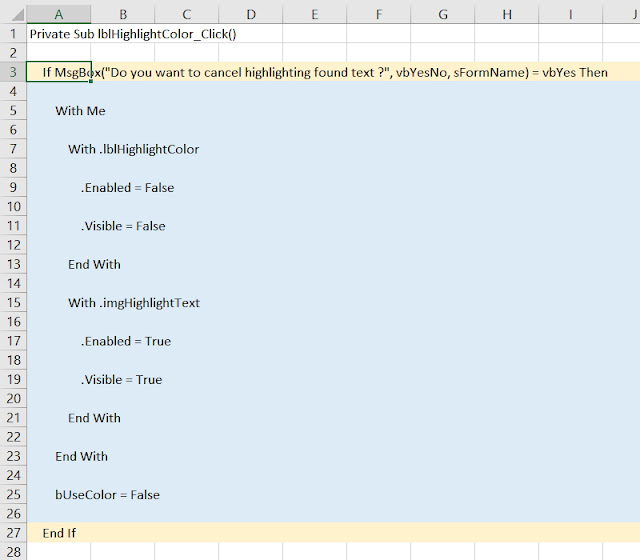
    Highlight Code In Excel
    Export your code to a worksheet in a new workbook. Selecting cells in Column A that have keywords like If, With, Select, etc will be highlighted so you can see where that part of the code begins and ends. This is very beneficial to your mental health when trying to figure out what connects with what in those long, long procedures.


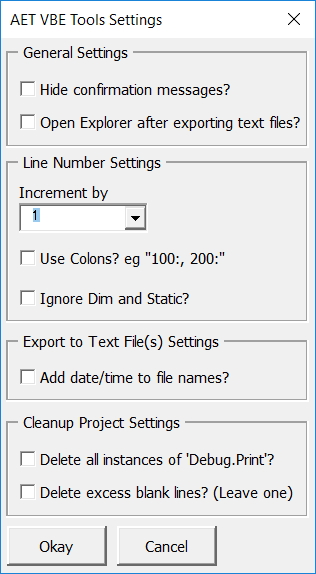
    Last, but not least, there are various settings available.


    That's it for now. I've already started writing code for my upcoming shareware version, and one cool new tool is already added.

    Please support me by purchasing a copy when it's ready.

    For now, download AET VBE Tools v1.6 here.

    Update: A patch has been released. See here for details.

    PS: Stay updated by joining my mailing list. You can subscribe where indicated on the sidebar to the left.

    Monday, 23 January 2017

    AET VBE Tools v1.5

    So soon?

    Yep, I made a couple of small improvements under the hood. Better now than later.

    Download the new version here.

    Sunday, 22 January 2017

    AET VBE Tools v1.4

    Another week, another tool.

    Copy Code
    You can now "copy" code between projects.


    By this I mean the following,

    Standard modules, class modules and userforms will be be replaced if they exist (have the same name), or added if they don't exist.

    ThisWorkbook code will be replaced.

    Sheet module's code will be replaced if they exist, or worksheets will be added with the new code if they don't exist.

    I may add some more functionality to this tool at a later date.

    Line Numbers
    I've rewritten the code so indenting is no longer influenced by line number length. This was a bug that really bugged me ;-)

    Download the latest version of AET VBE Tools here.

    Sunday, 15 January 2017

    AET VBE Tools v1.3

    I've been working on the latest version of AET VBE Tools all weekend, literally.

    It's been an all out effort, so I made some major improvements to the code, and added a little more functionality to the Multiple Find and Replace tool.

    As per last time, I find myself without time to blog in detail (my wife thinks I'm insane, and she may be right!) so without further ado, I present AET VBE Tools v1.3.

    You can download it here.

    Thursday, 12 January 2017

    AET VBE Tools v1.2

    AET VBE Tools v1.2 is out.

    More bugs were squashed and a new tool called Multiple Find and Replace was added.

    The download link is here.

    I'll add more details later. Time for sleep.

    Sunday, 8 January 2017

    AET VBE Tools v1.1 and Line Numbers

    Last time I blogged, I mentioned that my new AET VBE Tools had more stuff coming.

    Well, I've been VERY busy adding new tools and settings, redesigning and also fixing bugs, both major and minor.

    There are two new tools and one new feature.

    Code Snippets
    You can now add snippets into a procedure where the cursor is located. And the Code Snippets tool can save up to 10 different items.


    Highlight Code in Excel
    There's no way to highlight code in the VBE. But we're using Excel, right?

    This tool copies selected procedure code to a worksheet in a new workbook, and also inserts event code to highlight cells that looks for keywords such as "If, "For" and "With" so you can see which lines of code match.


    Potentially useful if you have lots of nested code!

    Undo last operation
    Most tools now have an undo option. So if you want to revert to how things were before the tool was used, now you can! Refer to the Help Files for details.

    Line Numbers
    I improved my code that works with line numbers. And as I promised last time, I'll write a bit to explain how they might be useful.

    You can add line numbers like 10, 20, 30 or 10:, 20:, 30: in front of your code.

    There are some rules. For example, they must be unique per procedure. Some code doesn't accept them, such as the first Case statement in a Select Case block. (Other Case statements don't have this problem). For the most part, they are okay, and my tools are designed to only add them where they are allowed.

    So why use them?

    They are a handy reference. Imagine giving or following directions to a house. Isn't is easier when there are street signs? You can also use code like GoTo 120, which means the code will jump to Line 120 of your procedure.

    And how about an accident? Street signs are going to make things easy again. You can use line numbers in the same way an emergency services worker would refer to a street sign when writing up a report.

    For example, step though the code below using the F8 key to see how it works. (Click Ctrl + G to show your Immediate Window if i's not visible)

    Sub ERLDemo()
    On Error GoTo 40

    10 Debug.Print 1 / 0

    20 Debug.Print "Today's date is " & Format(Date, "d mmmm, yyyy")

    30 Exit Sub

    40 Debug.Print "An error occurred on Line " & Erl

    End Sub

    The result...


    Because an error occurred on Line 10, the code went straight to Line 40 and also told us which line of code caused the problem.

    Useful? You decide. Something to consider is that you may need to edit existing line numbers if you change your code. Fortunately, my Add Line Numbers tools replace old ones with new ones, and in sequential order, with one click. Also, I've noticed that adding colons to line numbers actually makes stepping through code take longer, so unless anybody can mention a benefit, I'd stick with just using numbers by themseves. But as you guess, my tools have the option to include colons if that's your preference.

    Speaking of which, download the new version of AET VBE Tools here!

    Saturday, 24 December 2016

    AET VBE Tools

    T'was the night before Christmas,
    when all thro' the house,
    not a creature was stirring,
    except for an eccentric developer, who can't rhyme to save his life.

    But he can code a bit. So this is his present to you!

    Let me tell you a story...

    Once upon a time, there was a VBA coder who wanted to install a well known indenter. But he couldn't due to the IT policy where he worked, and he decided to make his own. Pleased with his success, he uploaded it to his blog for download. Years passed. He also made a couple of other VBE tools, and often thought of combining them to make a full suite of tools. One day, he was reading about line numbers in VBA code. "Gee" he thought, I should rewrite my code to work with them too." He had a try, but couldn't think an easy solution. One day, when he had nothing better to do, he thought a bit more and came up with an entirely new approach. "Eureka!" he shouted, "I haven't found gold or invented a law of displacement, but I've thought of a way to handle those line numbers!" He set about adapting his code and was thinking of writing a blog post when all of sudden his site went down. "Hmm, that's odd" he thought...

    Now, by coincidence, he was having a look at a friend's blog. (Let's call him Dick). And he saw that another friend (We'll call him Dennis) announced his own amazing addin. Inspired by this, the coder was eager to upload his own. But still his site was down. He waited, and while he waited, he thought "Why not add more stuff?". And so he did. Finally he asked yet another friend to help get his site back up (Let's call him Colo. Thanks Colo!), and here we are. He's finally got his addin uploaded and is writing a blog post about them at this very moment. Literally.

    So what does this addin do?

    It indents VBA code in the active VB project, module, procedure or selected code, with or without line numbers. I'll blog about line numbers next time.

    It also has the ability to add or delete line numbers to/from the active VB project, module or procedure.

    And you can export your active VB project, module or procedure code to text files, with the option to assign unique file names (or the files will be overwritten with new version of your code if that's what you prefer)

    Another useful thing is adding, replacing or deleting macro comments (comments directly beneath Sub and Function names, for the active VB project, module or procedure.

    There's more stuff on the way too!

    Here's a pic.


    And here's a link!

    Merry Christmas!


    Saturday, 12 September 2015

    Updates

    I'm working on various updates. One thing I have done is make yet another change to my AET Data Checker. I changed it so that when you show the form, the sheet you have on your screen (the Active Sheet) will be the sheet constantly referred to, even if you navigate to other sheets or workbooks.

    Previously, selecting other sheets had the effect of making them become become the Active Sheet (the sheet to be referred to). This probably confused a few people or may have been a distraction.

    Download the new version here.

    Coming soon, a new version of AET Excel Utilities.

    Saturday, 8 August 2015

    AET Data Checker - New Features

    I've added some new stuff to my AET Data Checker addin.

    First, I added some labels so you can see what the Main Column and Look At Column are referring to (not just the Column letter)


    The assumption is you will have your data set up with column headers in the first row.

    Next up, you can now select the Main Criteria from a combo box (dropdown list). Or you can still type it in like before. Plus you can use wildcards like * and ?.


    With all combo boxes, you can use the up and down arrow keys to rapidly change columns and criteria.

    You'll also notice some new checkboxes.


    What do they do? This!


    When used, the highlighted labels make it easy to see what values matter. Use the square button at the top to turn all highlighting off or the checkboxes to toggle it individually.

    Download the new version here.

    See some examples of it's use here.

    See you next time.