Showing posts with label Announcements. Show all posts

Wednesday, 26 April 2017

AET VBE Tools v1.7.3

Yet another tool has been added!

You can now run a report that shows project statistics. It's a good way to get a general feel of how much work you have done, and where it is located.

Details include:
  • Module Names
  • Procedure Names
  • Count of Children (Project and Modules)
  • Procedure Scope
  • Count of Lines (Project, Modules and Procedures)
  • Count of Comments (Project, Modules and Procedures)
  • Count of Declaration Lines (Project and Modules)
  • Count of Declaration Comments (Project and Modules)


    Download the new version here.

    P.S. If you have purchased an earlier version, contact me by email and I'll send a new set of tools - free of charge!

  • Thursday, 6 April 2017

    AET VBE Tools v1.7.2

    Already? Didn't you just release v1.7.1?

    Yes, and I'm pleased to announce 2 new additions to the tools!

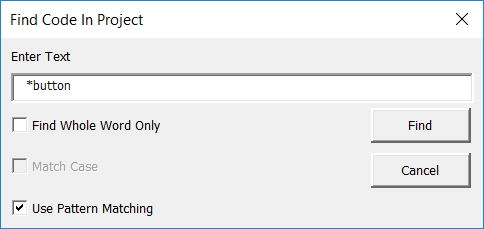
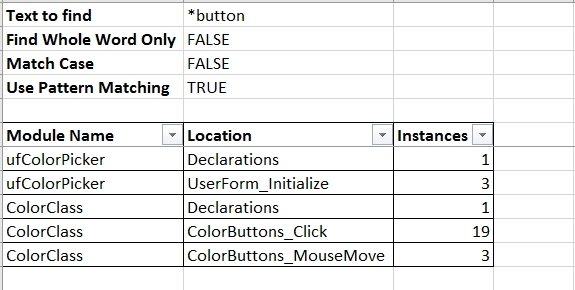
    Find Code In Project
    This tool creates a report that works in a similar way to the built-in Find dialog in the Visual Basic Editor.


    Details include,

  • Module Name
  • Procedure Name
  • Instances (count of code found)


    Select Current Procedure
    Do you hate scrolling?

    Selecting all code in a module is easy, just use the Ctrl + A keys on your keyboard. A procedure - not so easy, especially if it's a loooong procedure.

    Trust me, this tool helps. You and your hand(s?) can thank me later.

    Download the new version here.

    P.S. Tick the G+1 icon at the bottom of my post to tell me if you like what you see!

  • Monday, 27 March 2017

    AET VBE Tools 1.7.1

    It has been a busy couple of weeks, but I added some new features to my VBE tools.

    Line Continuation
    Here's a pic of what's available.


    My version of line continuation adds spaces and underscores after And and Or keywords.

    So something like
    If Left$(LTrim$(.Lines(lCodeLine, 1)), 4) = "Sub " Or Left$(LTrim$(.Lines(lCodeLine, 1)), 12) = "Private Sub " Or Left$(LTrim$(.Lines(lCodeLine, 1)), 11) = "Public Sub " Or Left$(LTrim$(.Lines(lCodeLine, 1)), 9) = "Function " Or Left$(LTrim$(.Lines(lCodeLine, 1)), 17) = "Private Function " Or Left$(LTrim$(.Lines(lCodeLine, 1)), 16) = "Public Function " Or Left$(LTrim$(.Lines(lCodeLine, 1)), 12) = "Property " Or Left$(LTrim$(.Lines(lCodeLine, 1)), 12) = "Private Property " Or Left$(LTrim$(.Lines(lCodeLine, 1)), 12) = "Public Property " Then

    becomes
    If Left$(LTrim$(.Lines(lCodeLine, 1)), 4) = "Sub " Or _
    Left$(LTrim$(.Lines(lCodeLine, 1)), 12) = "Private Sub " Or _
    Left$(LTrim$(.Lines(lCodeLine, 1)), 11) = "Public Sub " Or _
    Left$(LTrim$(.Lines(lCodeLine, 1)), 9) = "Function " Or _
    Left$(LTrim$(.Lines(lCodeLine, 1)), 17) = "Private Function " Or _
    Left$(LTrim$(.Lines(lCodeLine, 1)), 16) = "Public Function " Or _
    Left$(LTrim$(.Lines(lCodeLine, 1)), 12) = "Property " Or _
    Left$(LTrim$(.Lines(lCodeLine, 1)), 12) = "Private Property " Or _
    Left$(LTrim$(.Lines(lCodeLine, 1)), 12) = "Public Property " Then


    Much easier to read. But there are 2 things to watch out for.

    1. If And or Or is between quotation marks, an error will occur. If this happens, click Undo last operation.

    The best way to check for errors is to use Compile VBA Project at the top of the Debug menu after adding line continuation.

    2. I haven't experienced problems myself, but I occasionally read about people whose code doesn't work properly if there is too much line continuation in a project. Something to keep this in mind anyway. Again, I recommend compilation of code and saving your work at regular intervals in case things go wrong.

    New Cleanup Project Options
    In addition to deleting excess blank lines (if you have several blank lines between code, only one will remain), you can now choose to delete all blank lines too. Not only that, you can delete comments and indenting.


    Personally, I like to have blank lines between regular code and indenting for readability, as well as comments to keep track of what is going on. But when the code is ready for distribution, the 3 new options can drastically reduce the size of your project which is definitely a good thing.

    Download the tools here.

    P.S. Tick the G+1 icon at the bottom of my post to tell me if you like what you see!

    Note: Thanks to everyone who participated in the Facebook sharing event. All good things come to an end, and the offer is now closed! (Don't forget to send your email address so I can send a copy of the tools. My email address is on the blog sidebar).

    Sunday, 12 March 2017

    AET VBE Tools v1.7

    Finally they're ready!

    What's new?

    1. Rename Userform Controls
    This tool allows you to batch rename all controls on a userform via a simple Find and Replace interface. In addition to changing the control names, it also changes code with the old control name to the new control name.

    So, if you want to change all controls that start with "CommandButton" to "btn" or "cb", etc, this is the way to do it all at the same time!


    2. Make Project Variables List
    The bigger the project, the more complex it becomes.

    This tool analyses your code and makes a list of variables and constants.


    Details include:
  • Module Name (Where the variable or constant is)
  • Scope (Public, Private, Type or Procedure)
  • Location (Declaration or procedure name)
  • Name (Variable or constant name)
  • Type (Variable or constant type, eg String, Long, etc)
  • Const (True or null, to discern between variables and constants)
  • Const Value (Value if constant)
  • Found in Project (Count within project)
  • Found in Report (Count within report)
  • Modules Count
  • Procedures Count
  • Unique Values
  • Duplicate Values

    More features are planned in the near future.

    3. Copy Code for Web
    If you need to show your code on the web, normal indenting won't show. The way to get around it is to convert indent spaces to " ".

    This tool does that and copies the code to the clipboard so you can paste it where required.

    4. Delete Orphan Code
    This feature was added at the request of Kellsens Willamos, who has supported me and the development of these tools from the beginning.

    What's "orphan code"?

    When developing, did you ever click userform controls by mistake? Maybe you get something like this.

    Private Sub lblSelectProject_Click()

    End Sub


    Chances are you don't want the code, and if there's nothing between the first and last line, it's a fair bet that you don't. The Delete Orphan Code tool looks for code like this and gets rid of it.

    I've added it as an option on Cleanup Project Code. To include it, tick the checkbox on the Settings form.


    AET VBE Tools are no longer free. But I'm keeping the price low so they are affordable. (And you will get future versions free of charge!)

    You can download them here.

    P.S. Tick the G+1 icon at the bottom of my post to tell me if you like what you see!

  • Monday, 6 March 2017

    AET VBE Tools v1.6.4 and Overall Progress

    Latest patch - 2 bugs have been fixed, and one change has been made to certain wording.

  • Fixed an indentation bug when the first procedure of a module was at the very top (No Option Explicit and no Declarations).

  • Also fixed a bug with Macro Comment Tools when more than one tool was used with the form still open.

    And I changed the wording of some messages to simplify translations for international versions!

    2 translations are being prepared - Portuguese and Japanese - and I want your help to translate into other languages!

    Please contact me the email address below.


    Other Progress
    It's been a super busy week getting the tools ready for translations, but there's more good news!

    I've started work on a version that works with Microsoft Word and plan to make a version for other Office products.

    Will keep you updated!

    For now, download AET VBE Tools v1.6.4 here.

    Ticking the G+1 icon at the bottom of my posts fuels my enthusiasm!

  • Tuesday, 28 February 2017

    AET VBE Tools v1.6.3

    This patch concerns another change to the Undo code, and is in case you unchecked "Trust access to the VBA project object model" after launching Excel. Perhaps unlikely, but I like to avoid potential bugs whenever possible.

    v1.6.3 is available here.

    Also, thanks to everybody who ticks the G+1 icon at the bottom of my posts. It gives me incentive to keep doing my best!

    Sunday, 26 February 2017

    AET VBE Tools v1.6.2

    Just a quick post to let you know the a new patch has been uploaded.

  • Indentation had a bug fixed when there were comments immediately after "Then" in If... Then code.

  • Cleanup Project Code had a minor tweak to alert you when no options were chosen.

  • I disabled Undo when a different tool is run.

    Undo should be used (if you wish to) immediately after you use a tool. So having it still enabled after using another tool may have caused confusion.

    Many thanks to those who have helped me improve these tools. Your support is appreciated!

    I'm happy to say the next version is already finished with 3 new tools, I'm just waiting for the online store to get things set up. Hoping for early March at this stage.

    Until then, v1.6.2 is available here.

    Update: I just released patch v1.6.3 that has another improvement to the Undo code.

    If you like my tools, please click the G+1 icon on this post and/or my blog's sidebar to let me know ;-)

  • Saturday, 18 February 2017

    AET VBE Tools v1.6.1

    Yes, it's still freeware. Think of it as a patch.

    I'm still committed to updating this version by fixing any bugs that I find, or tweaking this and that with improvements. It won't have as many features as upcoming versions, but I don't intend to abandon it either.

    So, what's new?

  • An indenting bug was fixed for Select Case constructs when working with Projects and Modules.

  • I also improved the indenting of Add Line Numbers code.

  • When adding the date and time to text files being exported, the code has been adjusted to show the correct time.

  • I made a change to the Copy Code and Compare Code userforms. Sometimes duplicate file names were showing.

  • I edited Highlight Code In Excel so that individual Case statements are also highlighted with Select Case constructs.


  • Note: It is a big help to see them highlighted this way. Unfortunately I had to hard code that part, so it will only work if your tab settings are set to 4. (In the VBE, Tools, Options, Editor, Tab Width). If I find a way to determine this programatically, I will adjust the code to suit.

  • As a small bonus, I also added the functionality to delete Debug.Assert and Stop to the Cleanup Project code.


  • Download it here.

    Saturday, 11 February 2017

    AET VBE Tools v1.6

    This will be the final freeware version.

    Let's see what we have so far. Access AET VBE Tools by right clicking within the active code pane.


    Here are the tools.

    Indent Code
    Indent code within the active VB project, module, procedure or selected text.


    Add Line Numbers
    Add line numbers to code within the active VB project, module, procedure.


    Delete Line Numbers
    Delete line numbers from code within the active VB project, module, procedure.


    Export Code
    Export code from the active VB project, module, procedure to text files.


    Compare Code
    Select modules from projects.


    Code from both modules will be exported to worksheets in a new workbook.

    Code that exists in one module, but not the other (and vice versa) will be highlighted.


    Copy Code
    You can copy code/modules between projects.


    Standard modules, class modules and userforms will be be replaced if they exist (have the same name), or added if they don't exist.

    ThisWorkbook code will be replaced.

    Sheet module's code will be replaced if the sheet exists, or worksheets will be added with the new code if they don't exist.

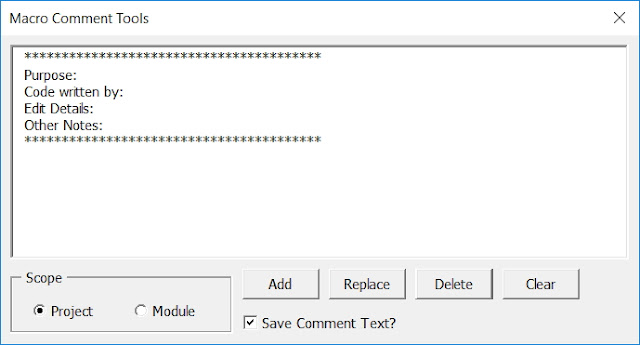
    Macro Comment Tools
    A handy way to add generic comments to all macros in the active project or module.


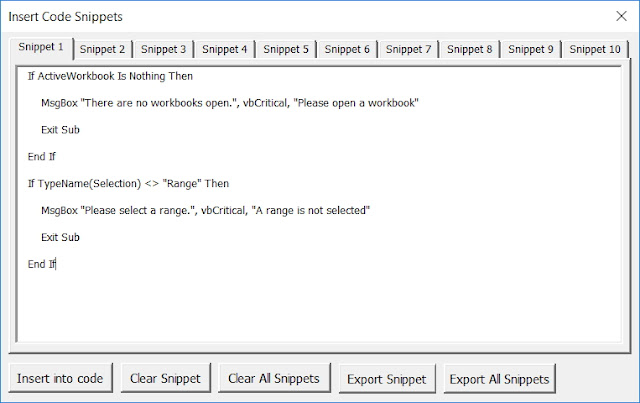
    Insert Code Snippets
    Tired of entering the same code all the time? This makes it easier.


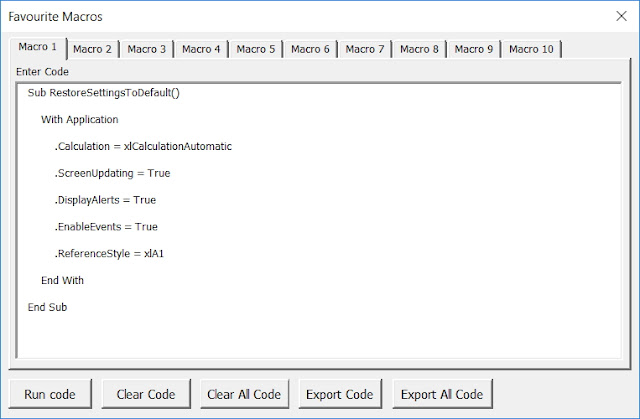
    Run Favourite Macros
    Yes, you can already run them from your Personal workbook.

    But now you can also export your favourite code to text files. Note: Not all code will run. This is a experimental tool, but I have found it quite useful when coding myself.


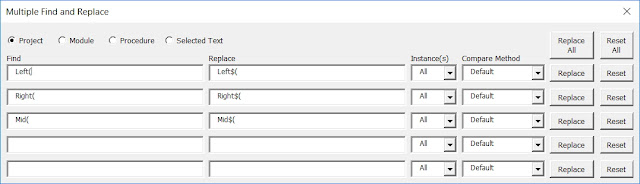
    Multiple Find And Replace
    You can find and replace code with several fields at once. Fields are saved between sessions.


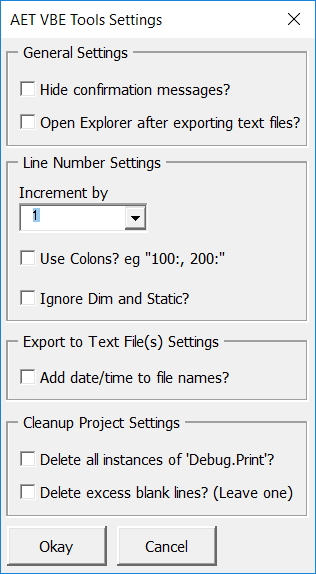
    Cleanup Project
    Just 2 options at the moment. You can delete lines of code that have "Debug.Print", and also delete excess blank lines. (Only a single blank line will remain)

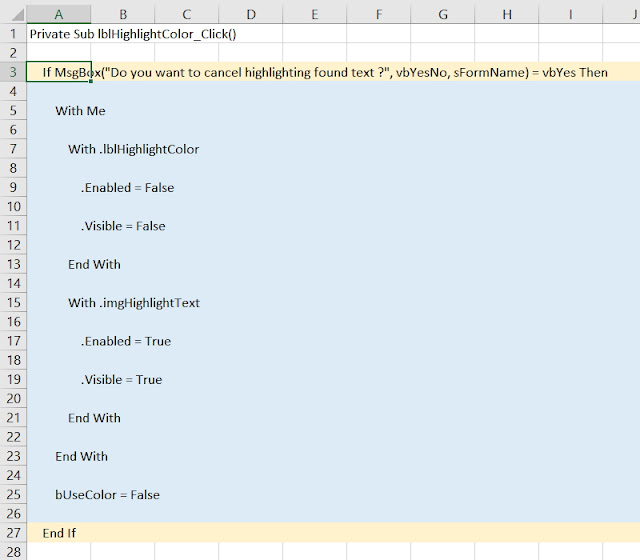
    Highlight Code In Excel
    Export your code to a worksheet in a new workbook. Selecting cells in Column A that have keywords like If, With, Select, etc will be highlighted so you can see where that part of the code begins and ends. This is very beneficial to your mental health when trying to figure out what connects with what in those long, long procedures.


    Last, but not least, there are various settings available.


    That's it for now. I've already started writing code for my upcoming shareware version, and one cool new tool is already added.

    Please support me by purchasing a copy when it's ready.

    For now, download AET VBE Tools v1.6 here.

    Update: A patch has been released. See here for details.

    PS: Stay updated by joining my mailing list. You can subscribe where indicated on the sidebar to the left.

    Saturday, 28 January 2017

    Excel Dashboard Pro Course

    Jordan Goldmeier is an expert at creating dashboards in Excel and is releasing a training course to help you master them too.


    I've had a look at the course myself and have this to say.

  • I am really impressed with the level of detail. Jordan doesn't skip over stuff, yet doesn't drown you with too much information.

  • The course is easy to understand. Jordan explains how things work in everyday language.

  • There's a good balance of hands on learning and theory. Both will benefit you as you progress through the course.

  • I can guarantee you are getting your money's worth. There are 60 plus video lessons, plus matching files that you can use to practice.

  • It's not just the quantity. The course covers everything you need to know and more. There's even bonus materials at the end.

  • As you can see, I like the professionalism of the course and it's presentation. Jordan excels at both and I recommend this course as a comprehensive way to become a dashboard guru. Even if you already have some experience, I'm sure the course will be of benefit.

    Disclaimer: As an affiliate, I make some commission in recommending this course on my blog. That said, I would never recommend anything that I thought wouldn't benefit you, my readers. After all, you are the reason I blog in the first place.

    To access the course site, click the Power of Foresight banner above.

    Saturday, 12 September 2015

    Updates

    I'm working on various updates. One thing I have done is make yet another change to my AET Data Checker. I changed it so that when you show the form, the sheet you have on your screen (the Active Sheet) will be the sheet constantly referred to, even if you navigate to other sheets or workbooks.

    Previously, selecting other sheets had the effect of making them become become the Active Sheet (the sheet to be referred to). This probably confused a few people or may have been a distraction.

    Download the new version here.

    Coming soon, a new version of AET Excel Utilities.

    Friday, 17 April 2015

    AET Data Checker v1.1

    A while back I promised a new version of my AET Data Checker addin... and I just uploaded it!

    What's new?

    1. Dropdown lists to select columns. This enables you to use your keyboard arrow keys to scroll across columns without having to type them in like before. The benefit is that you can just "scroll" across columns and watch the values change.

    2. You can show percentages, including to the number of decimal places you like.


    (This is the first video of my YouTube channel. Please subscribe to watch more!)

    Don't forget,

    = means spaces

    <> means non-spaces (numbers and text)

    <>= means everything

    Here's the download link.

    Coming soon

    An even better version of my much-loved AET Find and Replace tool (Thanks Jeff for your suggestions!)

    An interesting non-array / non-UDF way to get conditional data. (STDEVIF? No problem!)

    And more tools added to AET Excel Utilities (but don't wait for the new version because updates are free!)

    See you next time.

    Saturday, 4 April 2015

    The Amsterdam Excel Summit

    Just a quick heads up - The Amsterdam Excel Summit is coming up on the 13th and 14th of this month, and there's a last minute discount available of € 200 per attendee for both days or € 100 for one day!


    Looking at the list of top level speakers (as in literally some of the world's best), I can vouch that if you can go, it will be well worth it.

    Day 1

    Day 2

    Here is a link to the registration page.

    Do yourself a favour and sign up now!


    Friday, 3 April 2015

    AET Excel Utilities, Uploaded (Finally!)

    Dick Kusleika from the Daily Dose of Excel site has very kindly allowed me to post about my AET Excel Utilities on his blog.

    That's right, they're finally uploaded, just waiting for you to try them out (for a small price!).


    Read all about them here.

    Or go straight to the download page here.

    To be honest, it's a big relief to finally get them ready. I've neglected this blog of late and have some other interesting stuff I want to post about :-)

    See you next time.

    Monday, 16 February 2015

    AET Excel Utilities, Coming Soon

    It's been a busy start to the new year for me. But things are winding down and I hope to start blogging again soon.

    In the meantime, I've uploaded the help files of my upcoming AET Excel Utilities so you can get a sneak peek.

    Here's the link.

    See you next time.

    Saturday, 13 December 2014

    AET Excel Query v2

    I've just uploaded a new version of the AET Excel Query add-in based on some new code provided by friend and mentor, Masaru Kaji (aka Colo) of Cell Master fame.

    If you have previously downloaded the former version, or just want to try it for the first time, you can download the new version here.

    This will likely be my last post of the year. In addition to taking the rest of the year off, I'll be taking a trip in early January so I probably won't post anything for a month or so.

    Until then, I'd like to wish you a merry Christmas if you celebrate it. And most definitely, a happy new year in 2015.

    See you next time.

    Wednesday, 3 December 2014

    Excel 2013 and the Ribbon

    I've recently started using Excel 2013, and soon noticed the Ribbon doesn't act the same way as it did with Excel 2007 and Excel 2010. Addins that add menu items to "what used to be" (still is) the Top Menu (Menu Commands on the Add-Ins tab) and toolbars (Custom Toolbars also on the Add-Ins tab) are affected.

    After a quick look on the Internet, I found this.

    Well now, that changes things a bit...

    Actually the recommended method of looping through each Window and deleting controls and toolbars does not always work. As insurance, I recommend you add them as Temporary where applicable. As far as my testing shows, this works without fail. (And it's good practice too).

    Anyway, I was talking to my friend Ken Puls (of Excelguru fame) at the time, and he suggested using the Ribbon as it should be - with XML. And Ken should know, being one of the authors of RibbonX - Customizing the Office 2007 Ribbon.

    I gave this some thought and decided that's just what I'd do. I've used some very basic XML for my main tools, JMT Excel Utilties back in 2007, which has it own tab, but where was I going to put everything else. Why not in the same place?

    Ken kindly provided some XML to add items from different files on the same tab and I went from there. This is where I'm at now. It's been a busy two weeks, not just writing XML, but rewriting a lot of VBA.


    If you have already downloaded any of the above addins and use them with Excel 2007 - Excel 2013, you can replace them from the links below. I recommend you do so as I have made some major changes to some of their code. (If any of the menu items or toolbars still show on the Add-Ins tab from the old versions in Excel 2013, you can simply right-click them and delete them)

    AET Chart Tools

    AET Data Checker

    AET Excel Query

    AET Find and Replace

    AET Status Bar

    Calculation Checker

    Cell Highlighter (not pictured)

    Cell Watch Form

    Classic Excel Colors

    Marlett Checkboxes

    VBA Code Indenter
    Also, not shown in the picture, but I have made big improvements to the code. An xlam alternative version has been introduced in case you have problems with the regular VBE version.

    Download it here.

    JMT Excel Utilities?
    Hang on! In the above picture, I didn't see JMT Excel Utilities!

    No you didn't. But I can show you this. (Look to the left)


    They're making a comeback and will be better than before. They won't be free, but well worth what I'll be asking. Stay tuned.

    See you next time.

    Friday, 21 November 2014

    The Cell Masters

    In 2004 I met someone who would change my life and give me inspiration to start blogging.

    That person was my friend and mentor, Masaru Kaji, more commonly known in Excel circles as Colo, of Colo's Junk Room fame.


    I'm very happy to say he's back with a new site, named after his famous interviews with Excel legends, known as "The Cell Masters". I should mention that Colo is very much a Cell Master himself. In that respect, I would like to award him this.


    Please welcome him back. You can find his new site here.

    Thursday, 16 October 2014

    DIY Context Menu and DIY Top Menu

    Some years ago, I made an addin called DIY Context Menu.


    It allows you to run your VBA code, by saving it within the addin, directly from right click menus of your choice. Apart from the addin name itself, module names and subroutine (Sub) names define the second and third levels of the menu.

    For me it has proved very useful. You can save the addin in the cloud or on an intranet, so that you can run the same code from any PC that has access. And as far as I know, it should also run on almost any version of Excel (97 - 2013?).

    There are times though when a right click menu is inconvenient to run code from depending on what you have selected or not selected. With that in mind, I recently made a top menu version. (Yes, that's what I mentioned in my last post)

    Here it is in Excel 2010.


    And in Excel 2003.


    Note that it also appears in the "Chart" top menu.


    You can download them here.

    DIY Context Menu

    DIY Top Menu

    Note: I've noticed an error that occurs in Excel 2013. I'll announce a fix on my blog when (if) I find a solution.

    Coming up, and not in this order, an improved version of my AET Data Checker, something to help visibility, an alternative way of looking at time. And more. Same Bat Channel etc.

    Note: I've also decided to resuscitate my Japanese blog. It will make life interesting but I'll try to keep up a regular blogging schedule :-)

    See you next time.

    Saturday, 13 September 2014

    Excel Modeling World Championships 2014

    Attention Excel Enthusiasts! Something to whet your appetite.

    John Persico of ModelOff has asked me to announce the upcoming Excel Modeling World Championships for 2014.


    In John words,

    Invitation to the Excel Modeling World Championships 2014
    We’d like to invite the Excep Tips community to the annual Excel and Financial Modeling World Championship 2014 Event (ModelOff, www.modeloff.com). The Advanced Excel educational competition helps celebrate Excel in Financial Services. The fun, challenging and innovative competition has a mission to inspire skill development with Microsoft Excel, Financial Modeling and Financial Analysis which is central to global businesses and communities. The competition showcases some of the fastest, hard-working and talented Excel minds from 100+ countries. Round 1 starts on 25th October 2014 (8 weeks away)

    Summary of Event
    Over 3,000 participants competed in the ModelOff 2013 event. Major Global Partners and Sponsors are: Microsoft, Intralinks, S&P Capital IQ, Kaplan Education, Bloomberg, AMT Training, Corality and Ernst & Young. Participants come from diverse companies and jobs – such as Analysts, Associates and Managers at Investment Firms and Accounting Firms, CFOs, Analytics Professionals, In-House Excel/VBA Gurus and Consultants with a shared passion for Microsoft Excel and Finance. Students comprise ~35% of all entrants worldwide – most studying Commerce, Accounting, Finance and Masters university qualifications. The countries most represented have typically been: United States, UK, Poland, Russia, Canada, Australia, India and Hong Kong. Female participation is ~20% of all competitors - hopefully higher this year (the reigning champion is Hilary Smart 26yo from London).

    Entire competition completed in Excel. Top 16 Flown to New York in December 2014. Winner receives $30,000 cash, 3000+ participants. Example questions here.


    How It Works
    The ModelOff competition involves two online qualification rounds (2 hours each) conducted simultaneously around the world. The Top 16 performers are flown to New York for the Live Finals at the offices of Microsoft and Bloomberg in early December 2014. Questions are mostly case study and multiple choice format – with some ranging from a basic understanding of discounted cash flow (DCF) analysis, 3-way integrated cash flow models to more complex project finance and simulation techniques. Some basic Accounting, Finance and Excel knowledge is likely needed to progress to Round 2.

    Free Training and Preparation
    All past questions and tests from ModelOff 2012 and 2013 are free and available on the ModelOff website. The organizers believe in accessible excellence and this can be a great starting point for anyone looking to become involved for the first time and improve their Advanced Excel skills in Financial Services and Financial Modeling. We actively encourage all participants to visit all our community partners, bloggers, our major global sponsors during and following the event for their own learning, mentoring and professional development. Competitors in the Top 10% of ModelOff 2014 will be eligible for exciting local and international opportunities, offers from community partners and fun learning experiences (e.g. Trips to Microsoft Excel in Redmond). We're also hosting free networking events in major Financial Centres including Hong Kong, London, Sydney, New York and Regional Meetups in the coming months for anyone interested in networking and mentoring with Excel-users in their local cities. Entry to the competition is $20 for students and $30 for professionals.


    If this sounds like something you are interested in, I say go for it. I sincerely wish you the best of luck if you enter. (Hey, let me know if you win though!)